LinkedIn is the world’s largest professional networking platform, with over one billion members using it to build career connections, search for jobs, recruit talent, and share professional content. Owned by Microsoft, LinkedIn is used by professionals across virtually every industry and country. LinkedIn sends OTP (one-time password) verification codes via SMS in several scenarios — most commonly when you register a new account, log in from an unrecognized device, or add a phone number for two-step verification.
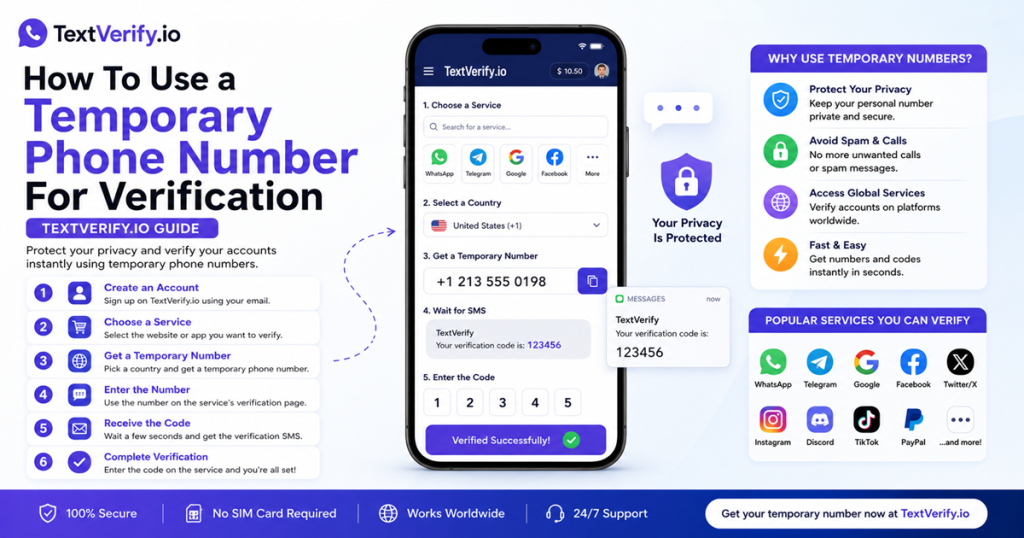
When LinkedIn sends an OTP to the phone number you provide, it first validates the carrier type. VoIP numbers are detected and rejected before any code is dispatched. To complete LinkedIn OTP verification without using your personal phone number, TextVerify.io provides real non-VoIP US carrier numbers with private inboxes. Enter the TextVerify number when LinkedIn requests phone verification, retrieve the OTP from your private inbox, confirm it, and the verification step is complete.
Why LinkedIn Sends OTP Verification Codes
LinkedIn triggers SMS OTP verification in several distinct situations throughout the account lifecycle:
| New account registration. When you create a new LinkedIn account, LinkedIn requires a phone number to send a verification OTP as part of the sign-up flow. This confirms that you are a real person and helps LinkedIn prevent automated account creation. The OTP must be confirmed before your account is activated and your profile can be set up. |
| New device login. When you sign in to LinkedIn from a device or browser it does not recognize, LinkedIn may send an OTP to your registered phone number or email address to confirm your identity. This is LinkedIn’s two-step verification in action. If your account has a phone number registered and SMS is selected as the 2FA method, the OTP goes to that number. |
| Adding a phone number for two-step verification. LinkedIn’s two-step verification feature (found under Settings → Sign in & Security → Two-step verification) allows you to add a phone number as a security layer. When you add a number here, LinkedIn sends an OTP to verify that the number is real and reachable before saving it to your account. |
| Suspicious activity or account recovery. If LinkedIn detects unusual login patterns, account activity that violates its policies, or if your account is locked, LinkedIn may require OTP verification before restoring access. In these cases, the OTP is sent to the phone number on file. A reachable TextVerify number can receive this code to restore account access. |
| LinkedIn Premium and Sales Navigator verification. When subscribing to LinkedIn Premium or LinkedIn Sales Navigator, LinkedIn may prompt for additional verification including phone confirmation. These paid subscriptions are linked to the same account and phone number used during registration. |
In all of these scenarios, LinkedIn validates the carrier type of the submitted phone number before sending any OTP. VoIP numbers are blocked at this stage. TextVerify numbers come from real US carrier networks and pass LinkedIn’s carrier check reliably.
What Does Not Work
These approaches consistently fail at LinkedIn’s OTP verification step:
| Google Voice. VoIP. LinkedIn’s carrier check identifies and blocks Google Voice numbers before sending any OTP. As a professional platform with a strong identity-verification requirement, LinkedIn maintains an up-to-date blocklist of VoIP number ranges. |
| TextNow, Hushed, 2ndLine, Burner, Sideline. All VoIP. Internet-routed app numbers are detected by LinkedIn’s carrier validation and rejected before any code is dispatched. LinkedIn places particular emphasis on real-person identity verification, making it aggressive in blocking non-carrier numbers. |
| Free public SMS websites. Numbers from public receive-SMS sites are blocklisted by LinkedIn. LinkedIn profiles represent real professional identities, and the platform actively works to prevent fake account creation using disposable numbers. These sites also expose your LinkedIn OTP to anyone browsing them publicly. |
| A number already used on another LinkedIn account. LinkedIn ties phone numbers to accounts for identity management. A number previously registered on a LinkedIn account cannot be added to a different LinkedIn account. A fresh TextVerify number is required for each new LinkedIn registration. |
TextVerify.io numbers are provisioned from real US licensed carrier networks. They pass LinkedIn’s carrier check, and the OTP arrives in a private inbox that only your TextVerify account can access.
Step-by-Step Guide
Here is how to complete LinkedIn OTP verification without using your personal phone number:
Common Mistakes to Avoid
- Using a VoIP number. LinkedIn’s carrier check blocks all VoIP numbers before sending any OTP. Google Voice, TextNow, Hushed, and every other internet-routed number fail at this stage. A real US carrier number from TextVerify is required.
- Not switching to an authenticator app after registration. With SMS 2FA active, every new device login sends an OTP to the registered number. If the TextVerify rental expires before you switch to an authenticator app, you will be unable to log in from any new device or browser. Switch immediately after account creation.
- Using a number already registered on another LinkedIn account. LinkedIn ties phone numbers to accounts. A number used for a prior LinkedIn account cannot be added to a new one. Use a fresh TextVerify number for each new LinkedIn registration.
- Entering the OTP after it expires. LinkedIn OTPs expire within a few minutes. Have your TextVerify inbox open before clicking “Send code” in LinkedIn so you can enter the OTP immediately when it arrives.
- Confusing phone verification with email verification. LinkedIn verifies both your email and phone number. The email confirmation link and the phone OTP are separate steps. Both must be completed to fully activate your account and access all LinkedIn features.
- Not updating the phone number before the rental expires. To change your LinkedIn phone number, go to Settings → Sign in & Security → Phone numbers. LinkedIn sends an OTP to the currently registered number to confirm changes. Do this while the TextVerify number is still active, or switch to authenticator-based 2FA first to remove the phone dependency.
Frequently Asked Questions
Bottom line
LinkedIn OTP verification requires a real non-VoIP carrier number — VoIP numbers are blocked before any code is sent. TextVerify.io provides real US carrier numbers that pass LinkedIn’s check. Get a number, enter it when LinkedIn requests phone verification, retrieve the OTP from your private TextVerify inbox, and confirm it. After account creation, switch LinkedIn’s two-step verification from SMS to an authenticator app to remove any ongoing phone number dependency for future logins.
TextVerify.io
💼 Complete Your LinkedIn Verification Today
Real non-VoIP US numbers · Passes LinkedIn’s carrier check · Private inbox
Get Started on TextVerify.io →