X (formerly Twitter) asks for a phone number during account creation and increasingly treats it as a core trust signal. While the platform technically allows email-based registration, phone verification has become the more reliable path — and X may prompt you to add a phone number even after you have signed up with email. For users who want to keep their personal SIM off X, manage multiple accounts, or simply avoid linking their mobile number to a social platform, this creates a recurring problem.
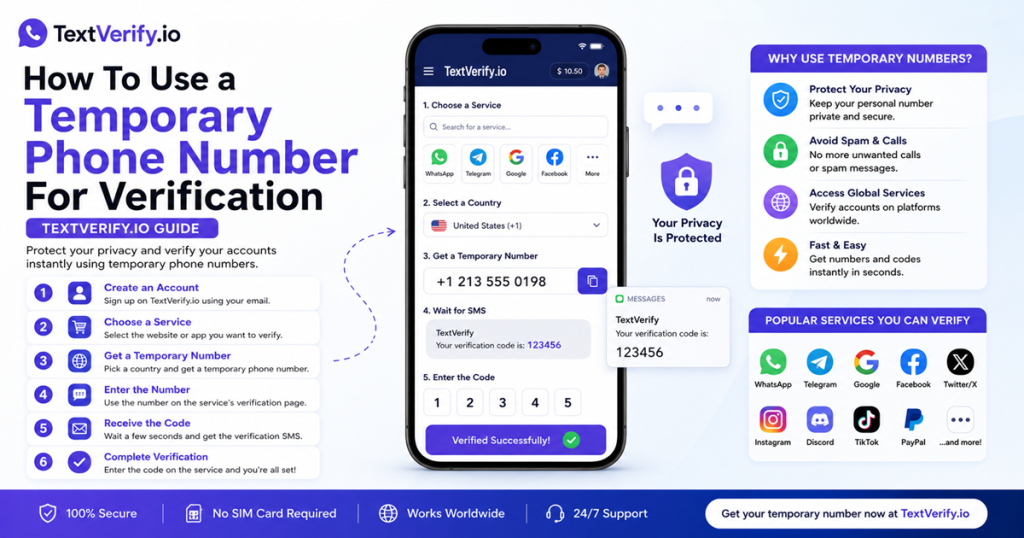
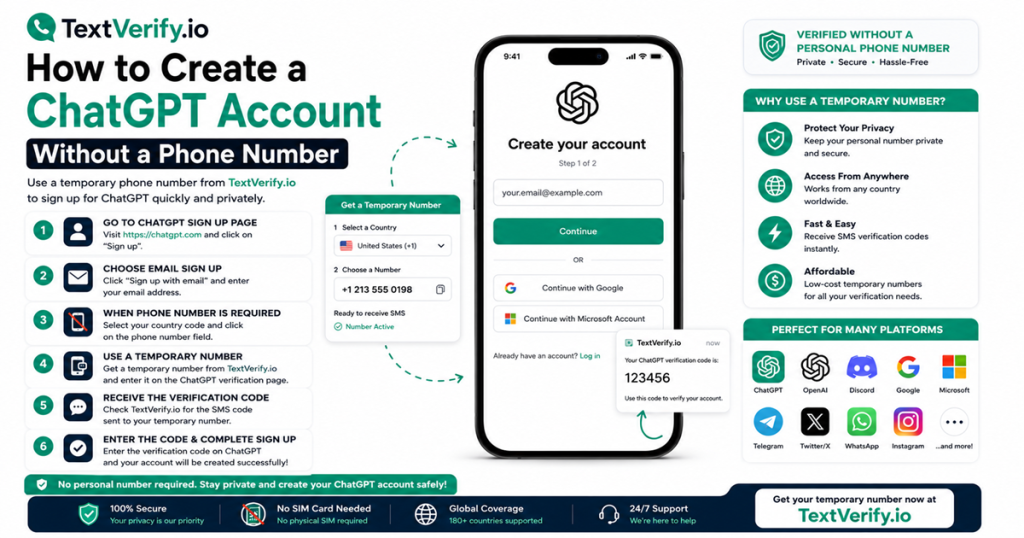
The practical solution is TextVerify.io, which provides real non-VoIP US phone numbers with a private inbox. When X asks for a phone number — during signup, at a verification checkpoint, or for two-factor authentication — you enter the TextVerify number, receive the SMS code in your private inbox, enter it, and the step is complete. Your personal phone number stays out of it entirely.
What X Requires to Sign Up
When you create a new X account, the signup flow asks for your name, date of birth, and either a phone number or email. X then sends a verification code to confirm the contact method before the account is activated. The platform’s phone verification behavior goes beyond just the initial signup:
| Account verification and trust. X Premium (formerly Twitter Blue) and monetization features require a verified phone number. Accounts without phone verification face tighter restrictions on actions like posting, following, and direct messages — especially on new accounts. |
| Two-factor authentication. X’s SMS-based 2FA requires a verified phone number. For non-Premium accounts, SMS is actually the only free 2FA method — authenticator app 2FA is gated behind X Premium. A phone-verified account can use SMS 2FA to protect login. |
| Security checkpoints. X may present verification checkpoints when it detects unusual account activity, a new login location, or other risk signals. These checkpoints require phone verification to unlock the account, even if you originally registered with email. |
| Account recovery. A verified phone number is one of the primary ways X confirms your identity during account recovery. Accounts without one have limited options if the associated email is also lost. |
Because X uses phone verification across so many features, having a real carrier number ready from TextVerify at signup — rather than hoping the prompt does not come up later — is the more practical approach.
Can You Use Email Instead of Phone on X?
Yes, X accepts email registration. The signup form has a toggle that lets you switch between phone and email. Registering with email avoids the phone verification step at signup. However, several situations can still trigger a phone verification prompt afterward:
| New device logins. Logging into your account from an unfamiliar device or browser can trigger a security check that requires phone confirmation before access is granted. |
| Rate-limit and spam flags. X actively limits accounts it suspects of automation or spam. New email-registered accounts that post, like, or follow heavily in the first few days are more likely to encounter phone verification checkpoints. |
| Accessing certain features. Direct messages, posting limits, and follower actions can be restricted on accounts without a verified phone number, particularly in the first weeks after creation. |
Email registration is a reasonable starting point. But having a TextVerify number ready to resolve any phone prompt that follows — rather than being caught off guard — keeps the account fully functional from the start.
What Does Not Work
These approaches consistently fail against X’s phone verification:
| Google Voice. VoIP. X blocks Google Voice numbers during the carrier-type check. The verification SMS is never sent and an error is returned immediately when the number is submitted. |
| TextNow / TextFree / Hushed / 2ndLine. All VoIP. X performs a carrier-type lookup before dispatching any SMS. Internet-based number services are identified and blocked at this stage — no code is ever sent. |
| Free public SMS receiving sites. X blocks most well-known shared number pools used by public SMS sites. These numbers are registered across thousands of accounts, making them trivially detectable. On rare occasions where a code might arrive, the public inbox means anyone can read it and access the account being created. |
| Numbers already linked to an X account. X allows only one account per phone number. Submitting a number already registered to another X account results in an error. You need a number that has not been previously used on X. |
| Closing or dismissing verification prompts. When X presents a mandatory phone verification checkpoint, the account is locked until the verification is completed. There is no way to dismiss or bypass the prompt. |
TextVerify.io numbers are real US mobile carrier lines. They carry no VoIP classification, have a clean usage history, and deliver SMS to a private inbox that only you can access.
Step-by-Step Guide
Here is how to create an X account without using your personal phone number:
Frequently Asked Questions
Bottom line
Creating an X account without a personal phone number means having a real non-VoIP carrier number ready for whenever X asks. TextVerify.io provides that number with a private inbox. Enter it during signup or at any verification checkpoint, get the code instantly, and the step is done — your personal number stays completely separate from your X account.
TextVerify.io
✖️ Create Your X Account Today
Real non-VoIP US numbers · Instant SMS · Private inbox
Get Started on TextVerify.io →